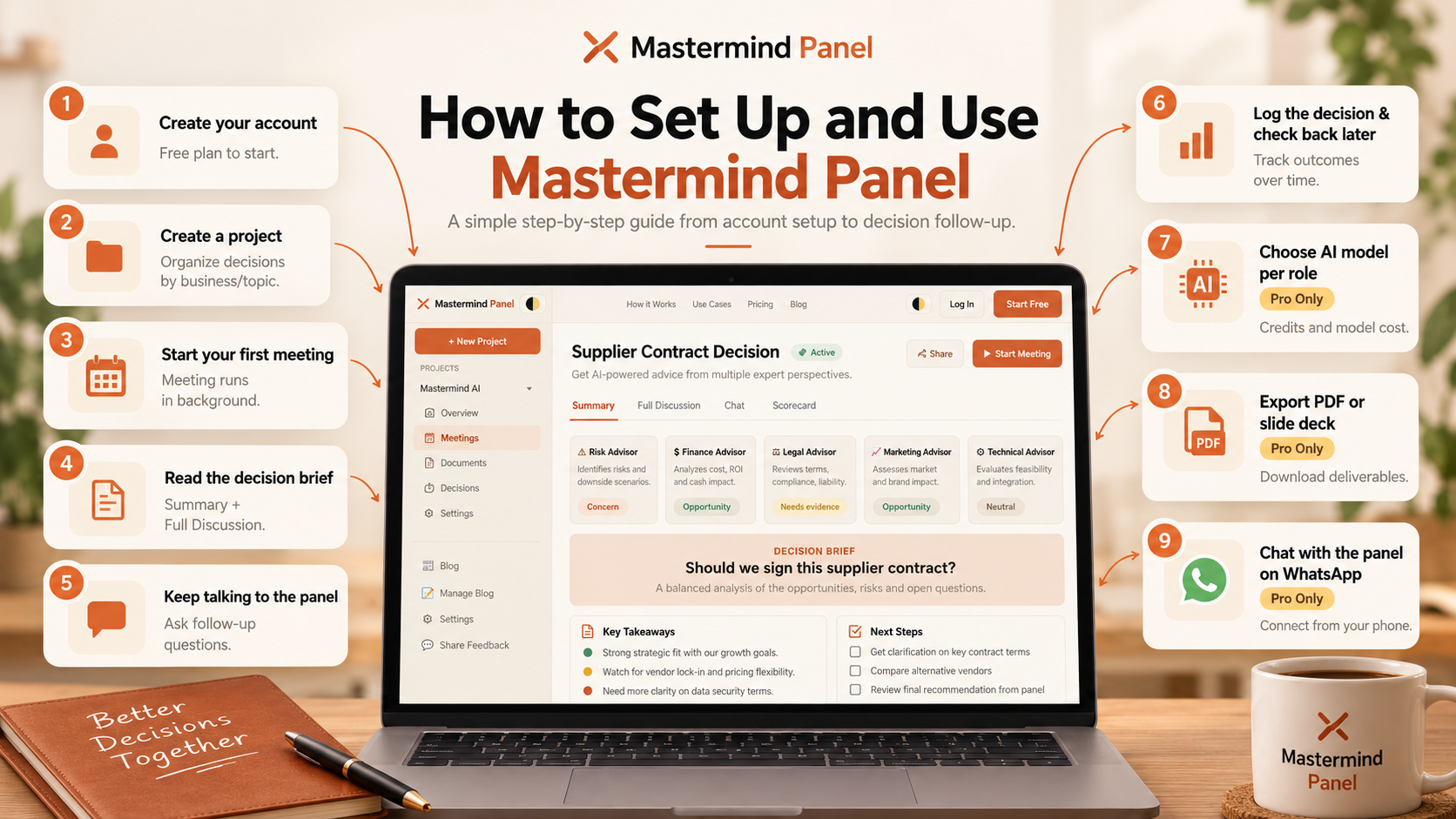
This is the full walkthrough: creating your account, running your first decision, reading what the panel gives you back, and — for Pro users — picking which AI model powers each advisor and understanding exactly how that choice affects your monthly cost. No prior setup needed on your end; there's no API key to find or paste in anywhere.
1. Create your account
Head to the sign-up page and create an account with your email. Every new account starts on the Free plan — no credit card required.
You can start on Free and upgrade whenever a limit actually gets in your way — there's an "Upgrade to Pro" button in the sidebar and on your Account page.
2. Create a project
A project is just a folder for a related set of decisions — e.g. one project per client, per business area, or per major initiative. Click + New Project, give it a name, and optionally:
3. Start your first meeting
Inside a project, click New Meeting and fill in:
Submit, and the meeting runs in the background — you'll see a progress indicator and can leave the page and come back.
4. Read the decision brief
When it's done, the Summary tab shows the synthesized decision brief: the panel's shared assumptions, where advisors agreed or disagreed, the single biggest risk and biggest opportunity flagged, what information is still missing, an honest confidence level, and the questions you should answer before actually deciding. This is deliberately not a single confident verdict — it's built to help you decide, not decide for you.
Want to see exactly what each advisor said, round by round? That's the Full Discussion tab — every individual response, collapsible so you can open just the ones you want to read.
5. Keep talking to the panel
After a meeting finishes, the Chat tab stays open. You can:
- Ask a follow-up question to the whole panel — you'll get one condensed reply instead of a wall of separate answers.
- Address one specific advisor by name (e.g. "Risk Auditor, what about...") to hear only from them.
- Click Get Updated Analysis any time to have the synthesizer re-read the whole conversation and refresh the decision brief with anything new that's come up.
6. Log the decision and check back later
Once you've actually decided something, log it from the meeting page: what you decided, and what you expect to happen. Mastermind Panel will remind you to come back (default 90 days) and compare what actually happened against what you expected — the Scorecard page tracks this across every decision over time, which is the real test of whether the panel's advice is actually holding up.
7. Pro: choosing a model per role, and what it does to your cost
This is the part worth understanding properly if you're on Pro. Go to your Account page → AI Model per Role. Every advisory role — Risk Auditor, Optimist, whichever ones you use — has a dropdown. Leave it on "Use its own model" and it runs on whatever model that role is configured with by default. Or pick a different one from the list.
Here's the part that actually matters: every AI model call costs real money, billed by tokens (roughly, chunks of text) in and out. A more capable, larger model costs more per token than a smaller, faster one. Your Pro plan gives you a monthly budget shown as Credits — every meeting, chat reply, and export draws down from it in real time, and it resets on the 1st.
There's no single "right" mix — it depends on how many meetings you want to run versus how much you want every single one to lean on the strongest models available. If you ever do run out mid-month, you can request or buy a top-up from your Account page rather than waiting for the reset.
8. Export a deliverable (Pro)
From a finished meeting, creator roles can turn the discussion into a downloadable file — a PDF report or a PPTX slide deck — ready to hand to someone else who wasn't in the room for the AI panel itself.
9. Chat with the panel over WhatsApp (Pro)
If it's set up on your account, go to Account → WhatsApp, pick which advisors should answer there, and you'll get a short code to text to our WhatsApp number to connect. After that, message normally to reach the whole roster, or mention an advisor by name to address just them — same panel, same budget, just from your phone.
That's the whole loop: create a project, run a meeting, read the brief, keep chatting if you need to, log what you decided, and check back later to see how it played out. If anything here doesn't match what you're seeing in the app, the feedback button is always open.
Comments
No comments yet — be the first.